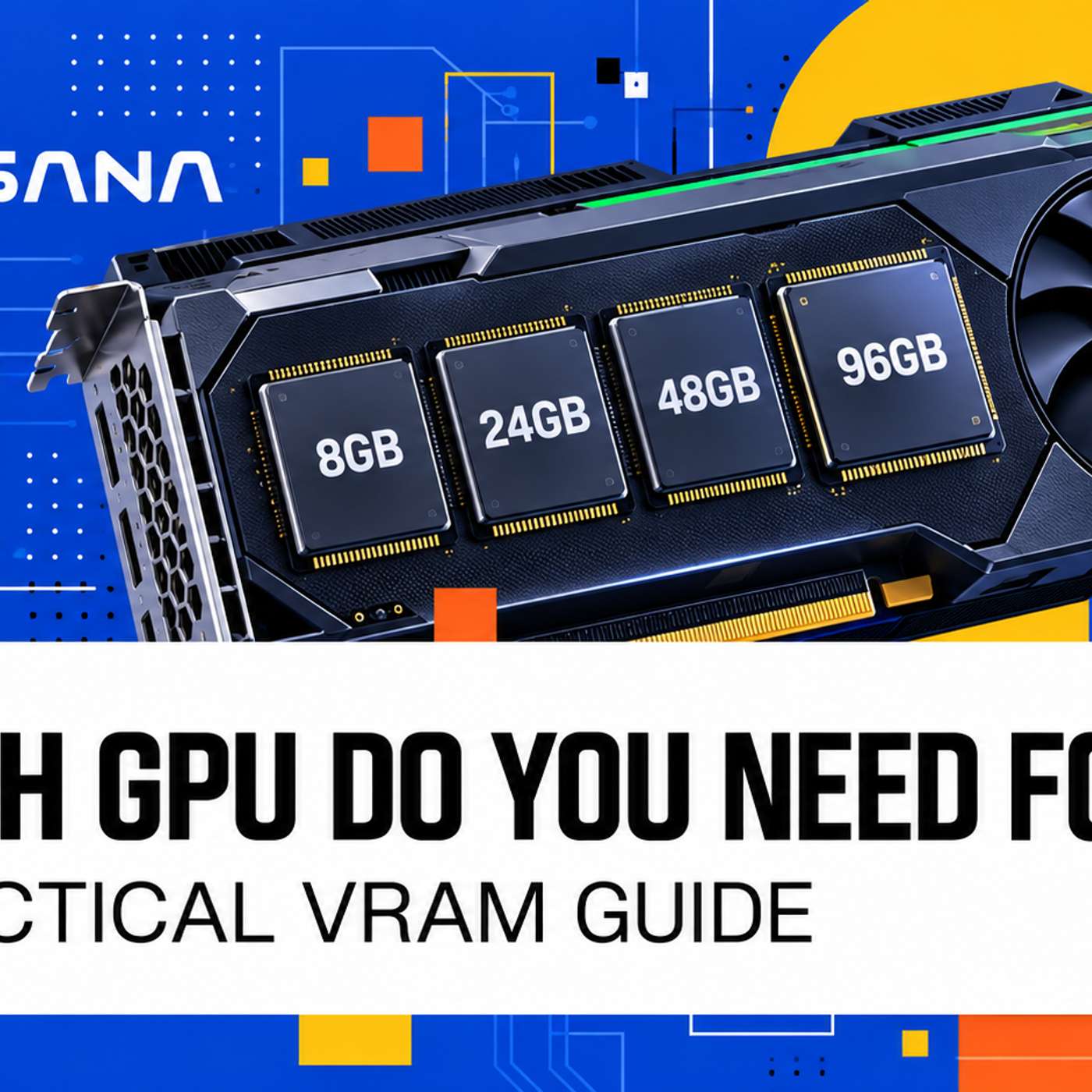
Which GPU Do You Need for AI? A Practical VRAM Guide
About this episode
This story was originally published on HackerNoon at: https://hackernoon.com/which-gpu-do-you-need-for-ai-a-practical-vram-guide.
Learn how to choose the right GPU for LLMs, RAG, image and video generation by comparing VRAM requirements, performance and cost.
Check more stories related to undefined at: https://hackernoon.com/c/undefined.
You can also check exclusive content about #vram, #vrm-software, #gpu-compute, #ai-workloads, #gpu-rental-platform, #ai-inference, #llms, #good-company, and more.
This story was written by: @nosana. Learn more about this writer by checking @nosana's about page,
and for more stories, please visit hackernoon.com.
The right GPU depends on the complete workload—not just the model name. VRAM requirements change with model size, precision, context length, concurrency, resolution and workflow complexity. Estimate the required memory, compare suitable GPUs by speed and price, and test with realistic inputs before committing.
Get every episode summarized
Each time The Good Tech Companies publishes, we email you a written briefing from the transcript — the topics, who appeared, and any specific claims, with the ad reads skipped.
Email me new episodesFree for 3 shows. No card needed.
Hosts & guests
Transcript ready
113 searchable segments. Every word is indexed and playable.
Full transcript
The Good Tech Companies — Which GPU Do You Need for AI? A Practical VRAM Guide. Machine-transcribed; use the interactive transcript above to jump the player to any line.
This audio is presented by Hacker Nune, where anyone can learn anything about any technology. Which GPU do you need for AI? A practical VRAM guide, by Nessana. Open models have made it much easier to build products around language, image, audio and video generation. Running those models still involves a less straightforward decision. Choosing the GPU that can handle the workload without making every test or inference request unnecessarily expensive. This matters whether you are testing a rag assistant, serving an LLM through an API, generating images in comfy UI or building an AI video workflow. A GPU with two little memory may fail to load the model or force you to reduce the context length, batch size, resolution or number of video frames. A GPU with far more memory than the workload needs may run it successfully, but at a cost that I ask difficult to justify. There is no single GPU requirement for an LLM or an image model. Hardware needs depend on the model, its precision, the inference framework, the size of the inputs and outputs,
and the number of requests processed at once. This guide explains how those factors affect VRAM and provides a practical starting point for choosing between the GPUs available on Nessana. What VRAM tells you about an AI workload? VRAM is the high-speed memory available directly to the GPU. During inference, it holds model weights, input data, intermediate calculations, output data and caches. When everything fits in VRAM, the GPU can process the workload without repeated LY moving data through slower system memory. A model's parameter count provides a useful starting estimate. A 7 billion parameter language model stored at 16-bit precision requires roughly 14 gigabytes for its weights alone. An 8-bit version uses approximately half as much memory for the weights, while a 4-bit version can reduce the requirement further. These figures are not complete fit calculations because the inference server, KV-Cache, runtime libraries and temporary tensors also consume memory. Language models need additional VRAM as the context and number of simultaneous requests grow.
Image and video models have a different memory profile, resolution, batch size, frame count and the number of pipeline components all matter. A basic image workflow may fit on a modest GPU, while a comfy UI graph with control nets, upscalers, VAEs or additional text encoders can require much more. VRAM should therefore be treated as a capacity limit, not a complete performance score. Two GPUs with 24 gigabytes of memory may both fit the same workload but deliver different generation speeds because their architectures, memory bandwidth and compute capabilities differ. The first question is whether the job fits, speed and price should be compared after that. A practical VRAM guide, the following ranges provide a useful starting point. They are not universal compatibility guarantees, so the exact model, container and settings should always be tested before committing to a production configuration. VRAM suitable starting point GP is listed on Nesana 8 to 10 GB transcription, embeddings, classification, compact quantized LLMs and basic image generation
RTX 3060, RTX 3070, RTX 4060, RTX 30812 GB quantized 7B class LLMs, smaller rag applications and moderate image workflows RTX 4070, RTX 507016 GB 7B-8B models with more context headroom and larger image pipelines RTX 4080, RTX 580, RTX 4000, A40024 GB 7B 8B FP 16 inference, larger quantized LLMs and advanced image generation RTX 3090, RTX 4090, RTX 5000, A5000032 GB AI video, complex comfy UI pipelines and medium sized quantized LLMs RTX 509040-48 GB larger model inference, long contexts, bigger batches and demanding media workflows A 140 GB, a 6000, RTX 6000-8B,
a 408096 GB large model inference, high concurrency, multimodal systems and enterprise workloads A 180 GB, H100, RTX Pro 6000 the GPUs shown in the Nesana interface and their availability can change a S capacity joins or leaves the network. The useful approach is to identify the likely memory to your first and then compare the price and expected performance of the GPUs currently available within it. 8-10 GB, focused workloads and affordable testing GPUs with 8 GB or 10 GB of VRAM are practical for speech transcription embeddings classification compact quantized language models and straightforward image generation they can also be useful for validating a container or checking that a deployment works before moving to more expensive hardware their limitations become visible when the scope grows. An application that combines embeddings with an LLM or adds higher resolution and multiple components to an image workflow may need to move beyond this tier.
12-16 GB, everyday LLM and Ragn development. The 12 GB and 16 GB tiers are a useful middle ground for developers building smaller AI products. They can support many quantized 7B class language models, RAG pipelines and moderate image generation workflows without the cost of a 24Gb or 48 GB GPU. The distinction between a demo and a real application matters here. A quantized model may fit easily with one short prompt, while longer documents and multiple active users expand the KV cache. 16 GB provides more flexibility for context, concurrency and additional image components. For example, consider a company knowledge assistant using a 4-bit MrL7B and 8000 token context and 1 or 2 simultaneous requests. Anurtex 4,070 or RTX 5,070 with 12 GB is a reasonable starting point because the model can fit while leaving space for the inference server and cache.
If the application later needs longer documents or several concurrent users, moving to a 16 GB GPU provides safer headroom. 24 GB, serious prototyping and more demanding inference. 24 GB is one of the most versatile tiers for AI development. It can support many 7B 8B models at 16-bit precision, larger quantized models and advanced image pipelines without immediately moving to professional 48 GB hardware. The MrL example shows how the job definition changes the recommendation. Loading the same 7B model at 16-bit precision requires roughly 14 GB for the weights alone, immediately ruling out a 12 GB GPU. A 24 GB card leaves more room for the runtime, useful context and concurrent requests. The model name I Sun change, but its precision and usage create a different hardware requirement. Nassana lists the RTX 3,090, RTX 4,090 and RTX 5,000,
a 5,000 in this category. The RTX 3090 and RTX 4,090 both provide 24 GB, but their performance can differ significantly, so runtime and price still matter once the workload fits. 32 GB, AI video and complex generation pipelines. At 32 GB, developers gain additional room for demanding image workflows, complex comfy UI graphs and current open video generation models. Video pipelines often need more memory because they process temporal information across many frames while also loading text encoders, VAEs, audio models or enhancement components. Nassana's Mini Max H3 image to video deployment is a concrete example. The workload turns a source image and prompt into a 1344x768 video with 124 frames at 24 frames per second, including native audio. Nassana pairs it with a 32 GB RTX 5,090, giving the complete pipeline enough capacity without moving directly to a 48 GB professional GPU. That recommendation
applies to this workload rather than every video model. A later model might fit on 24 GB, while a longer clip, higher resolution or additional enhancement stages could require more memory. 40-48 GB, larger models and heavier production use. The 40 GB and 48 GB tiers are suited to larger quantized LLMs. Longer contexts, bigger inference batches and demanding generative media pipelines. Depending on the model and runtime, this range can support some 70B class models at 4-bit precision, although the weights may leave limited room for context and concurrent requests. Nassana lists the A140 GB together with 48 GB options including the A6000, RTX 6000, A490. These GPUs span different generations and performance profiles, so equal memory capacity should not be mistaken for equal throughput. 80-96 GB, large models, concurrency and multi-model systems. High memory GPUs become relevant when a deployment needs to serve a large model,
retain long contexts, support substantial concurrency or keep several models in one pipeline. An 80 GB GPU gives a large quantized LLM considerably more room for caches than a 48 GB card, while 96 GB expands the available configurations further. Nassana lists the A180 GB and H100 in the 80 GB category, with RTX pro 6000 options at 96 GB. These GPUs support workloads that are impractical on consumer cards, but a compact application that uses only a fraction of their capacity will rarely justify the cost. How to choose without overpaying? Start by defining the workload rather than selecting a GPU by model name. For Anlum, record the exact model, precision, context length, batch size and expected concurrency. For image or video generation, include the resolution, frame count, duration and every component loaded by the workflow. Use those details to estimate the required VRAM tier, then compare the price, performance and availability of GPUs within it.
Test the deployment with representative inputs, realistic prompt lengths for an LLM, or the intended resolution and frame count for a media workflow. Monitoring peak memory during these tests provides a far better basis for the final choice than a model's minimum requirement. If the workload comes close to the memory limit, move up a tier or reduce the setting responsible for the increase. If substantial VRAM remains unused, test a lower cost option. The right GPU is not the largest one available. It is the most cost-effective option that can run the complete workload reliably under the conditions in which it will actually be used. Nassana displays VRAM alongside pricing and current availability, making it easier to compare suitable GPUs before testing the workload. Ready to find the right GPU for your workload? Explore the available options and deploy on Nassana here. Technical note. The examples in this article are practical starting points rather than guaranteed compatibility specifications. Actual VRAM consumption depends on the model version, precision, framework, optimization settings, context length, batch size,
resolution and other runtime variables. GPU listings, prices and availability on Nassana may change over time. Nassana website, join the Discord, follow us on x, Nassana on GitHub, Nassana Grants program page thank you for listening to this Hackernoon story, read by artificial intelligence. Visit Hackernoon.com to read, write, learn and publish.
More episodes
More from The Good Tech Companies

Protection Funds, Insurance and FDIC/SIPC: What Actually Covers What
The Good Tech Companies

Credible Captain Launches Independent Consumer Review Platform Focused on Transp...
The Good Tech Companies

4 Ways to Win a Hackathon (None of Them Is Writing Code)
The Good Tech Companies

Tokenized Stocks vs Real Stocks vs Stock Futures: Wall Street Without Walls and...
The Good Tech Companies